
Chisel MCP Server
The Chisel Model Context Protocol (MCP) server enables enterprise product teams to securely access their Chisel workspace through conversational AI. By integrating AI with Chisel’s product management system, teams can query ideas, customer feedback, and related product context using natural language—without navigating multiple views or dashboards. This capability streamlines information discovery, reduces operational friction, and supports faster, more informed decision-making across the product lifecycle. Built for scalability and control, the Chisel MCP server enables organizations to move faster while staying aligned on priorities and product outcomes.
Beta Notice
The Chisel MCP server is under active development. Some functions and settings may not be available, and you may experience bugs or performance issues during this period. This feature continues to evolve and might be subject to rate limits.
Requirements
Before you begin, ensure that:
- You have access to a Chisel workspace
- You have the required MCP credentials (Client ID and Client Secret)
MCP Connection Details
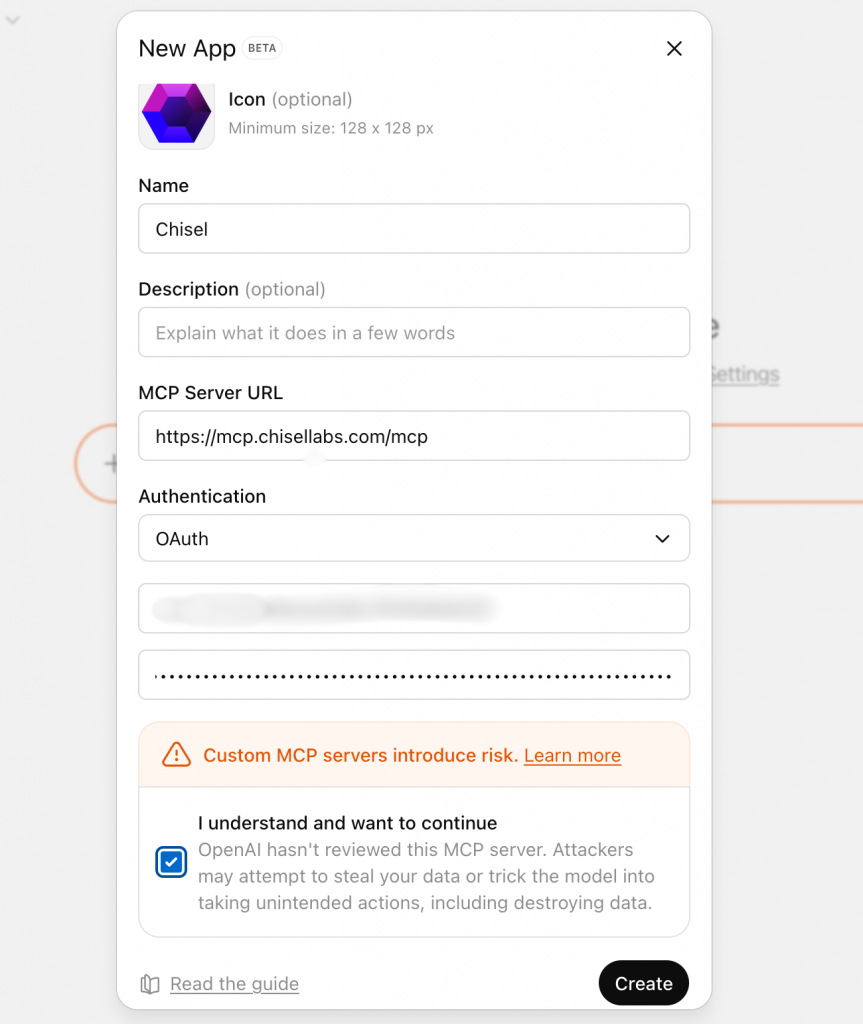
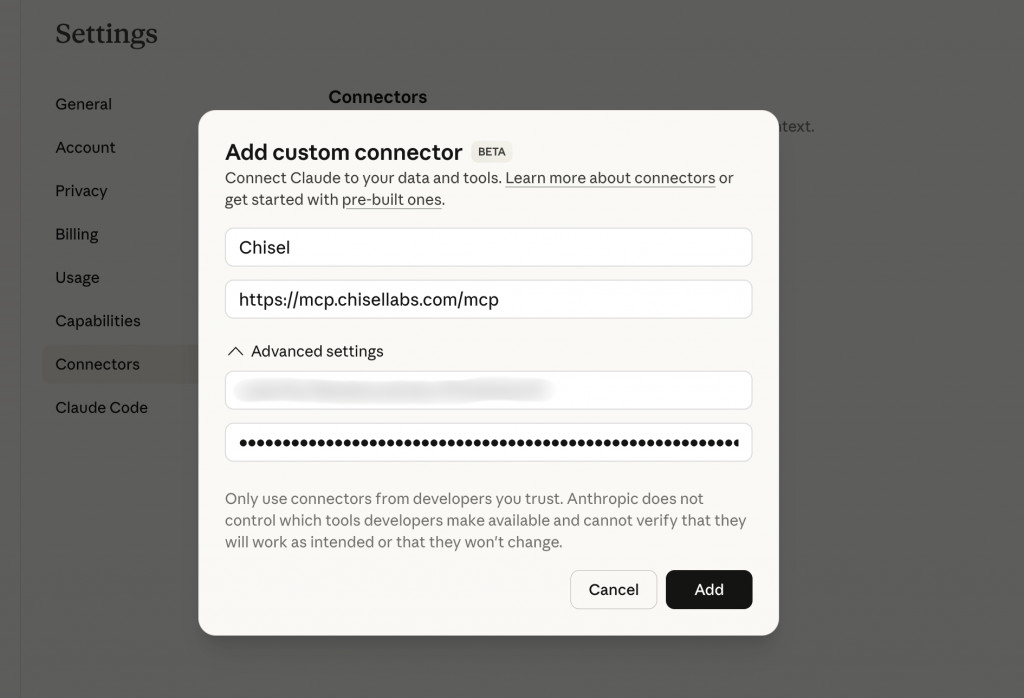
MCP Server URL : https://mcp.chisellabs.com/mcp
Client ID : Provided by Chisel
Client Secret : Provided by Chisel
Set up your MCP Client
- Go to Settings > Apps & Connectors > Advanced Settings
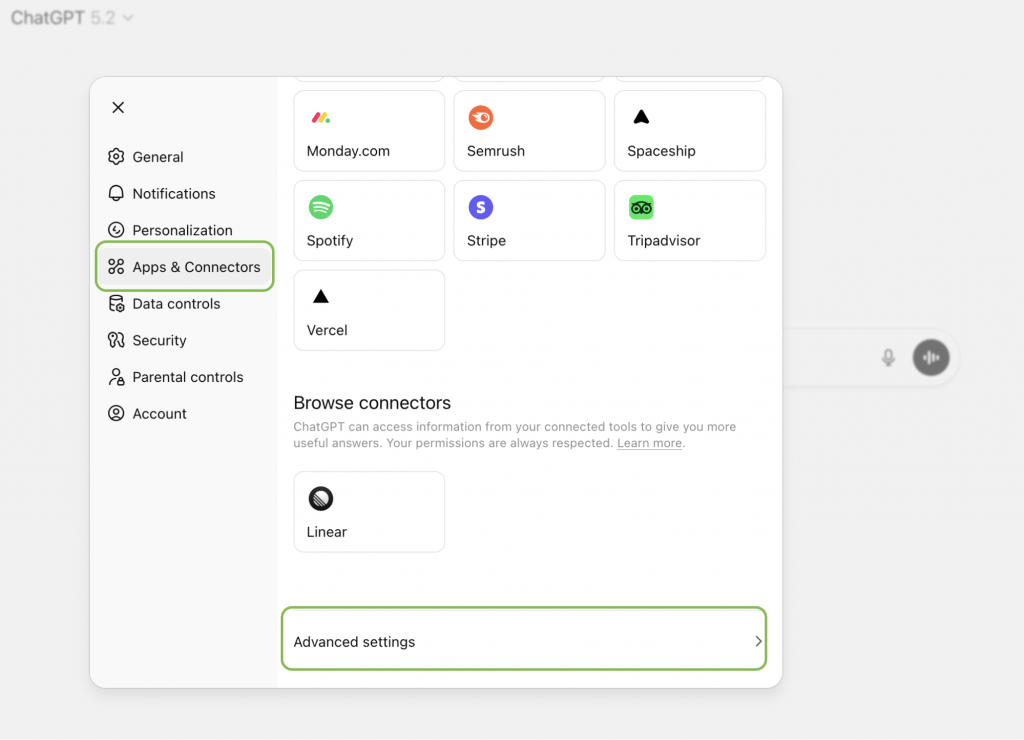
- Enable “Developer Mode”
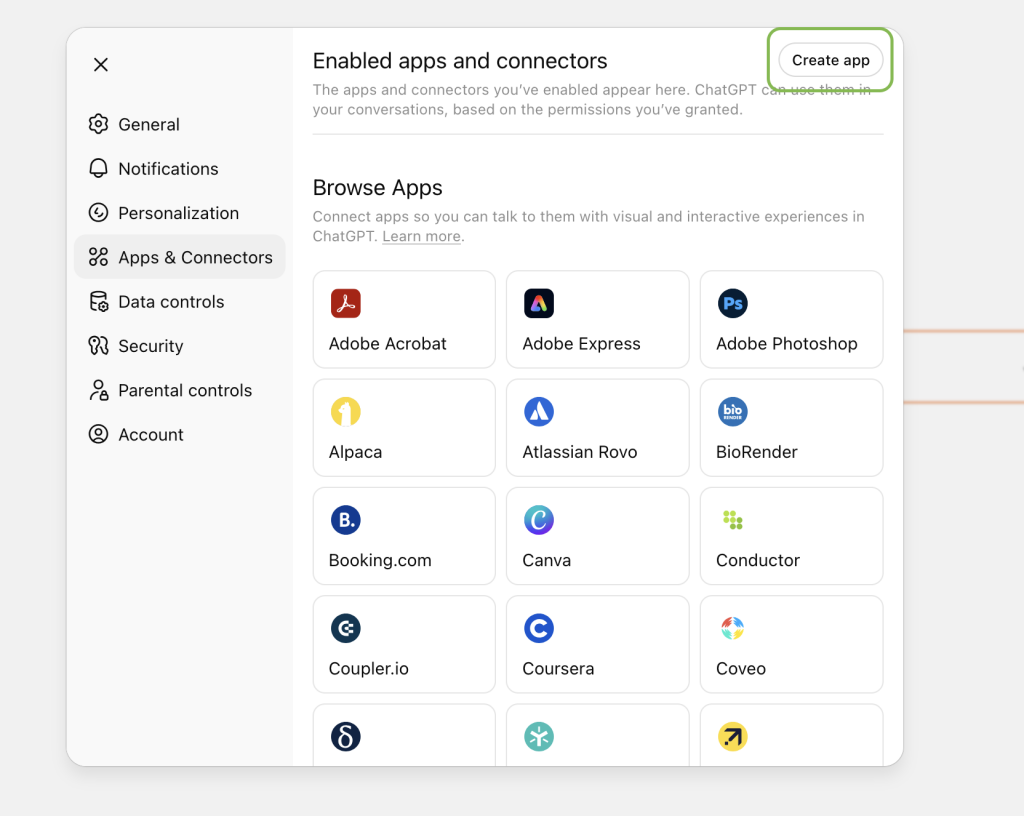
- Click on “Create App”
- Provide all relevant details like Name, Remote MCP Server URL, client ID, Client Secret and click on “Create” Button
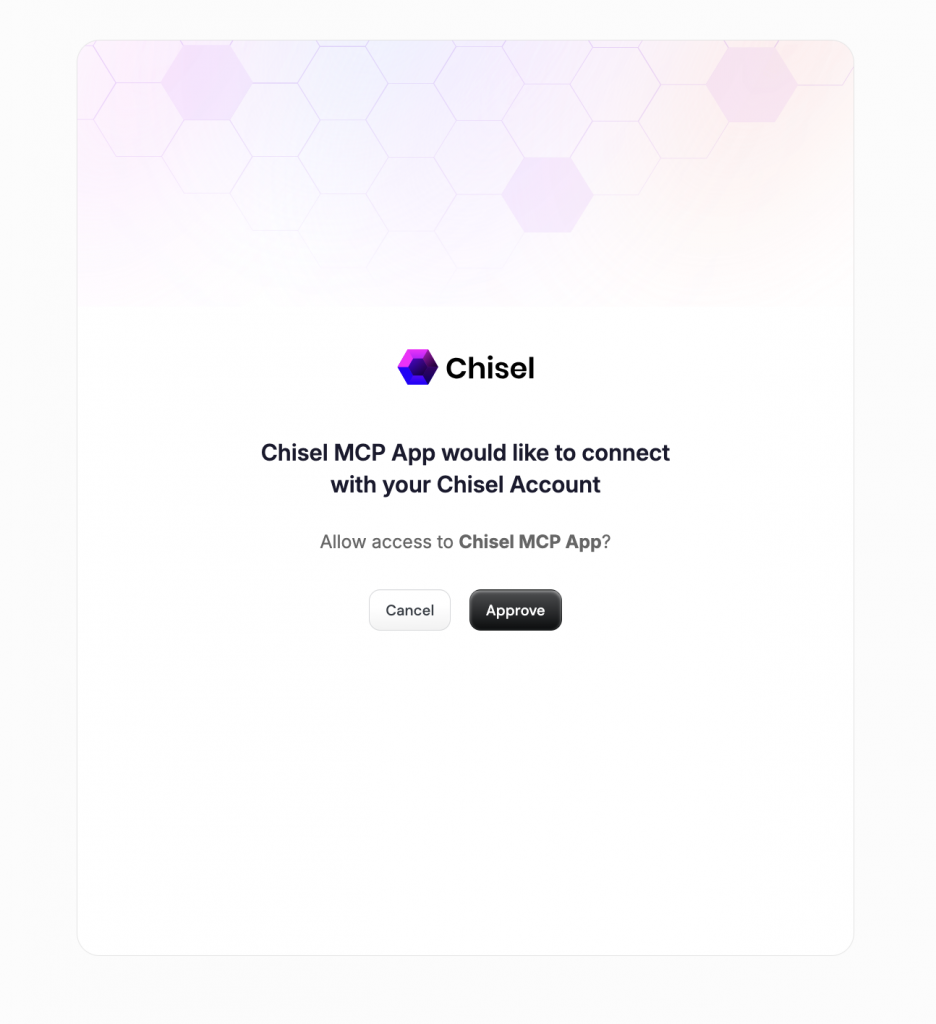
- Approve ChatGPT to access your Chisel workspace by following the authorization flow
- Once authorization is complete, you will see the following message in Chisel : “Authorization successful. You will be redirected shortly.”
- Now, Go to the ChatGPT home screen
- Click the “+” icon > More
- Select the Chisel tool
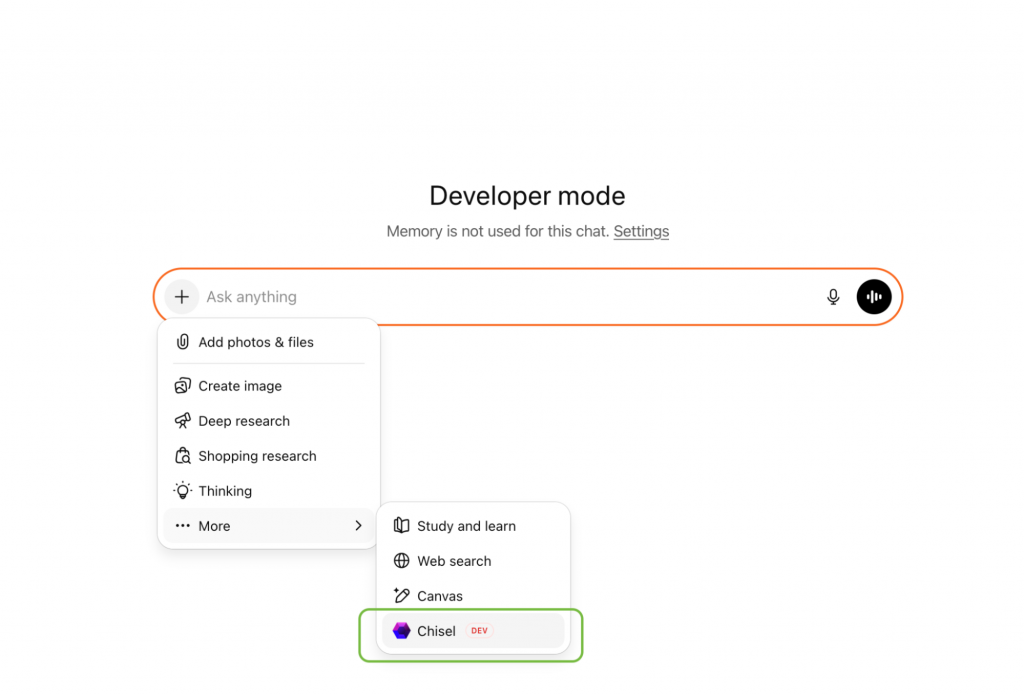
- This confirms that the Chisel–ChatGPT MCP server setup is complete.
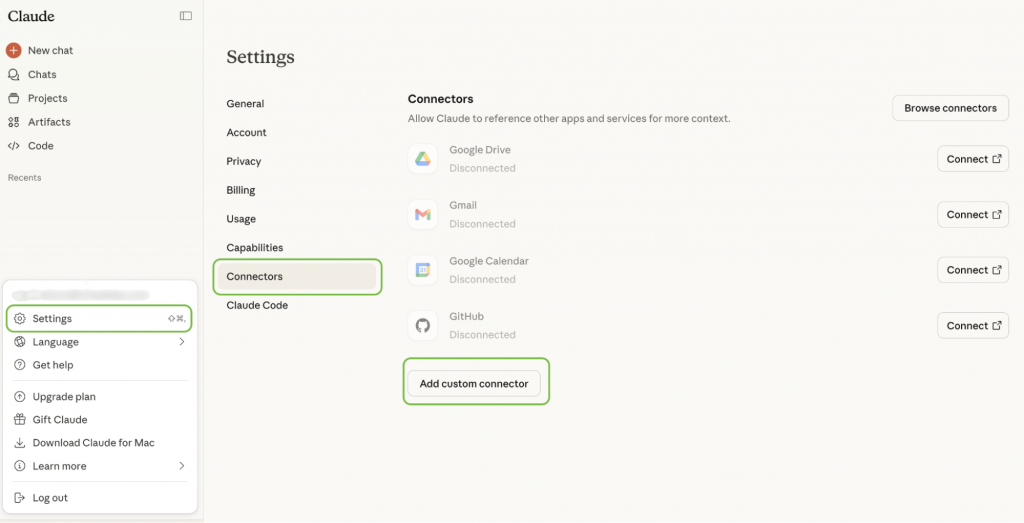
- Go to Settings > Connectors > Add custom connector
- Provide all relevant details like Name, Remote MCP Server URL, client ID and Client Secret
- Now, click on “Connect” button
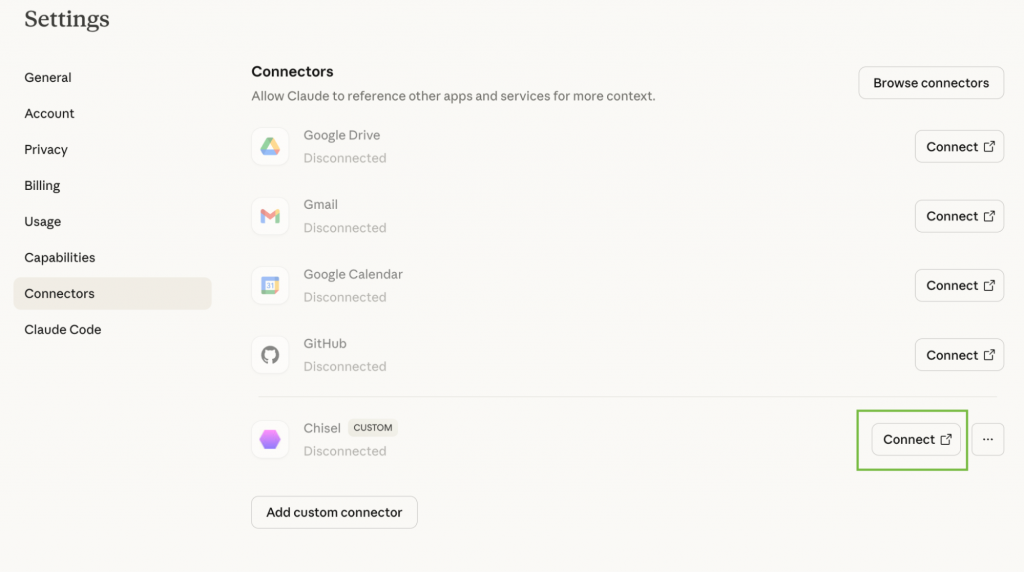
- Approve Claude to access your Chisel workspace by following the authorization flow
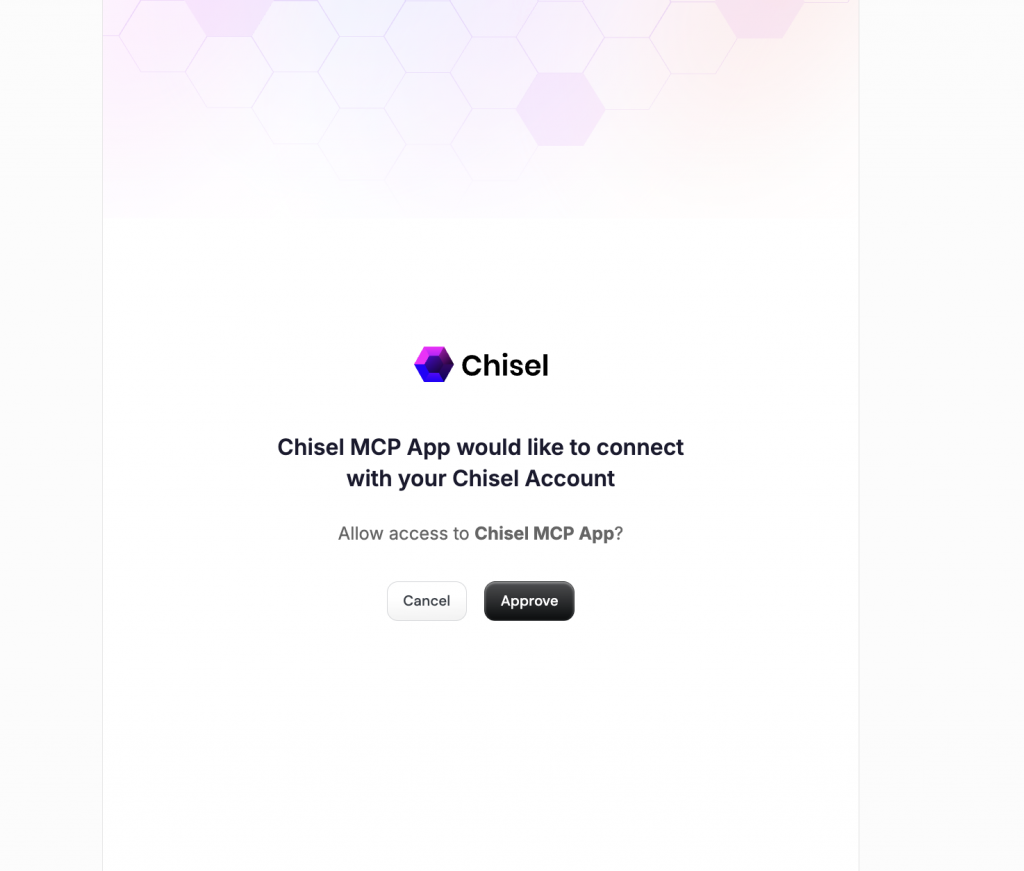
- Once authorization is complete, you will see the following message in Chisel : “Authorization successful. You will be redirected shortly.”
- This confirms that the Chisel–Claude MCP server setup is complete.
Query examples
- Show related ideas for feature requests about dashboards
- List down all High Priority ideas
- Find ideas having potential revenue > 20000
Security and Compliance
This integration allows approved AI services (such as ChatGPT and Claude) to query data from your Chisel workspace. Review your organization’s data handling policies before implementation.